How to use Calcurates MCP with your AI assistant

What is Calcurates MCP
MCP (Model Context Protocol) is an open standard that lets an AI assistant connect to an external service and take real actions in it.
Calcurates MCP is a remote MCP server. Once your assistant is connected, it reads and edits the configuration in your Calcurates account: origins, shipping areas, segments, rules and shipping methods. You describe the shipping logic you want, the assistant builds it.
This adds a third way to configure Calcurates alongside the two you already have: set everything up yourself in the interface, or ask our support team to help.
What you need
- An active Calcurates account, including the free trial
- An AI assistant that supports remote MCP servers with OAuth: Claude, ChatGPT, Cursor, Claude Code, Codex CLI and others. Usage limits depend on the plan you hold with that assistant, not on your Calcurates plan
- Your Calcurates email and password. No API key or token is required
Quick setup
- Open your assistant's connector or plugin settings.
- Add a new custom connector named
Calcurates. - Paste the server URL:
https://mcp.calcurates.com/mcp - Sign in with your Calcurates email and password on the Calcurates screen that opens, then approve access.
- Start a new chat and ask: "What can you do in my Calcurates account?"
The sign-in screen belongs to Calcurates. Your assistant never receives your password, only a token that you can revoke by disconnecting the connector.
Connect in Claude
Works on claude.ai and in the Claude desktop app.
- Open Settings
- Go to Connectors
- Click Add, then Add custom connector
- Enter the name
Calcuratesand the server URLhttps://mcp.calcurates.com/mcp
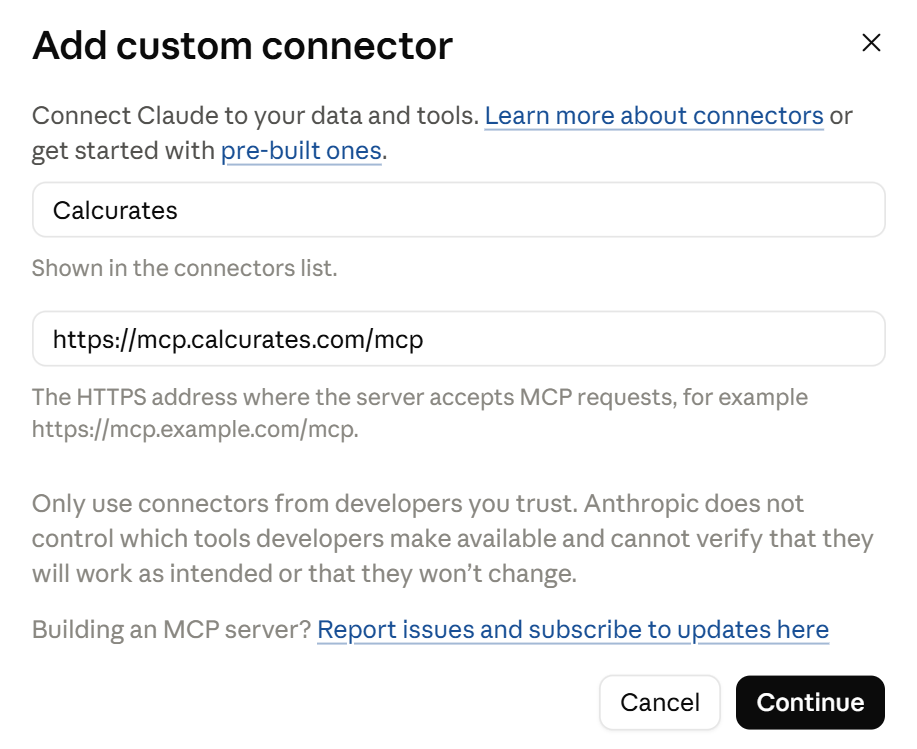
- Click Add, then Connect, sign in with your Calcurates account email and follow the instructions.
- Start a new chat. Calcurates appears in the connector list for that conversation.
Connect in ChatGPT
Custom MCP connectors sit behind Developer mode, which requires a paid ChatGPT plan.
On Business, Enterprise and Edu workspaces an administrator may need to allow custom
connectors first.
- Open Settings, then the Plugins section.
- Scroll down to Developer mode.
- Enable Developer mode.
- Back to the Plugins, scroll down and click Browse plugins, then click Add.
- Enter the name
Calcuratesand the server URLhttps://mcp.calcurates.com/mcp. - Leave the authentication method as OAuth.
- Click Create, sign in with your Calcurates account email and follow the instructions.
- Start a new chat and enable Calcurates in the tools menu.
Connect in Cursor
- {
- "mcpServers": {
- "calcurates": {
- "url": "https://mcp.calcurates.com/mcp"
- }
- }
- }
Other assistants
Any client that supports remote MCP servers over HTTPS with OAuth 2.1 and dynamic
client registration can connect to the same URL. Add https://mcp.calcurates.com/mcp as a custom remote server and complete the sign-in in your browser.
Some assistants do not support custom remote MCP servers at all, or restrict them to paid tiers. That limit belongs to the assistant, not to Calcurates. Check your assistant's own documentation if the connector option is missing.
What Calcurates MCP can do
The assistant works on the account you signed in with, and can both read your configuration and change it.
Available now:
- Websites: view the websites in your account
- Origins: create and update origin addresses
- Shipping Areas: build areas from country, state, city or postcode lists
- Free Shipping methods
- Flat Rate methods
- Shipping Segments: cart and product conditions
- Shipping Rules: hide, show, modify and combine methods
- Table Rates
- Packaging Rules: Add your Custom Packages in Smart Packaging first. The assistant can read them and use them in rules, but it cannot create or edit packages yet.
- Custom Delivery Dates and Global Delivery Dates Settings
- Test your rates: run a test request and confirm a new rule works. Test requests are charged the same as real checkout requests, so see Credits below
Coming next:
- Carrier connections
- Carrier Shipping Options
- Custom Packages
- Multi-Origin
- International Shipping
- Volumetric Weight
- Address Validation
- Time Slots
- In-store Pickup
- Rate Shopping
- Merged Shipping Options
- Product Page Shipping
Configure these in the Calcurates interface. The list of supported features grows with each release.
Example prompts
Read-only questions:
- "Which shipping areas include postcode 12345?"
- "List every shipping rule that hides a method, and explain what triggers each one."
- "Find contradictions between my shipping rules."
- "Which origin serves customers in California?"
Configuration:
- "Create shipping areas for Germany from this postcode list. Area North: 20095, 22765, 24103. Area South: 80331, 81667, 90402."
- "Create a Free Shipping method available in the 48 contiguous US states when the cart subtotal is over $150."
- "Show FedEx Ground for commercial addresses only and FedEx Home Delivery for residential addresses only."
- "Add these three origins: New York NY 10001, Los Angeles CA 90077, Chicago IL 60649."
Bulk work that takes a long time by hand, such as large postcode-based areas, is where the assistant saves the most time.
Credits
Connecting the MCP server costs nothing, and asking the assistant read-only questions about your configuration costs nothing. Creating and editing areas, origins, segments, rules and shipping methods costs nothing either.
Rate calculations are the exception. When the assistant runs Test your rates, that request reaches the calculator exactly as a customer's checkout would, so it consumes credits from your plan at your plan's normal rate. A long troubleshooting session with many test runs adds up in the same way that repeated testing in the interface does.
Your own rates and remaining balance are in Usage Stats, and each test request appears in the Activity Feed with its Request ID.
Credits charged by Calcurates are separate from the message or token limits of your AI assistant, which follow your plan with that provider.
Before you let the assistant make changes
The connector writes to your live configuration. Two habits keep this safe:
- Ask the assistant to describe the change before it applies anything, and read that description.
- After a change, open the relevant section in your account and confirm the result: Areas, Segments, Rules.
Then place a test order or use Test your rates, and check the request in the Activity Feed.
If you run more than one website in Calcurates, name the website in your prompt. Otherwise the assistant has to guess which one you mean.
Troubleshooting
The connector option is missing. Check that your assistant's plan supports custom remote MCP servers. On ChatGPT this needs Developer mode and a paid plan. On a team or enterprise workspace an administrator may need to enable custom connectors first.
Sign-in opens a page with raw text instead of a login form. The URL was entered
without the /mcp path. Use https://mcp.calcurates.com/mcp exactly.
The connector is added but no tools appear. Start a new chat and enable Calcurates in the tools menu for that conversation.
You are asked to sign in again. Access tokens are short-lived and refresh in the background. If your session expires, disconnect the connector and connect it again.
The assistant reports the wrong configuration. Confirm you signed in with the same Calcurates account you are looking at in the browser, and that the correct website is selected.
MCP and the Calcurates API
Calcurates MCP lets you run supported configuration actions through natural language from your AI assistant. The Calcurates API is for developers building custom integrations with direct requests.